
Count Functions in MS Excel
The requirement of counting is almost always present in our day to day job and Excel made it really easy for us by giving a number of counting functions like Count, CountA, CountBlank, CountIf and CountIfs. Let’s understand them in detail one by one:
1. COUNT FUNCTION- COUNT function count only those cells which have only numerical values.
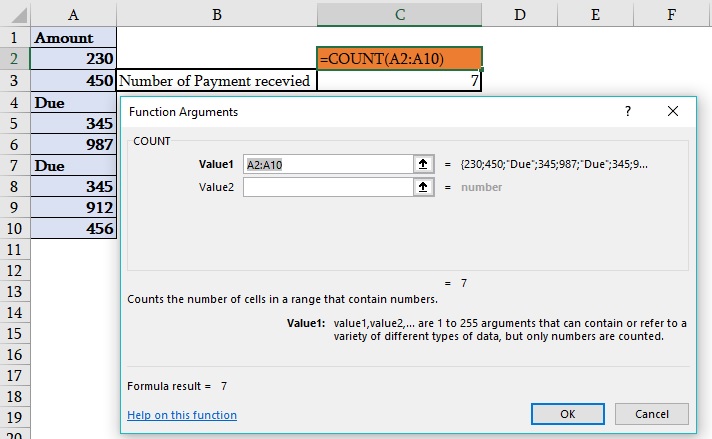
How to Apply COUNT?
As per the screenshot above, one need to count the total number of payments received.
Syntax- =Count(Value1,Value2………)
Arguments
Value1- [Mendatory Argument] We can choose a single cell or can select the whole range
Value2- [Optional Argument] We can choose a single cell or can select the whole range
2. COUNTA – It can count all the occupied cells in the selection.
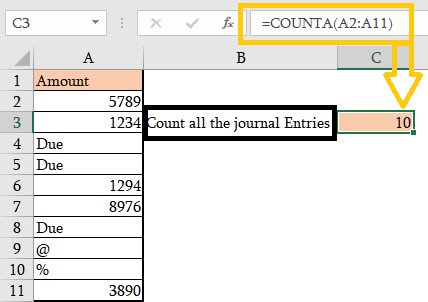
Arguments are same as mentioned in “Count Function above”.
3. COUNTBLANK- This can count all the blank cells in the selection.
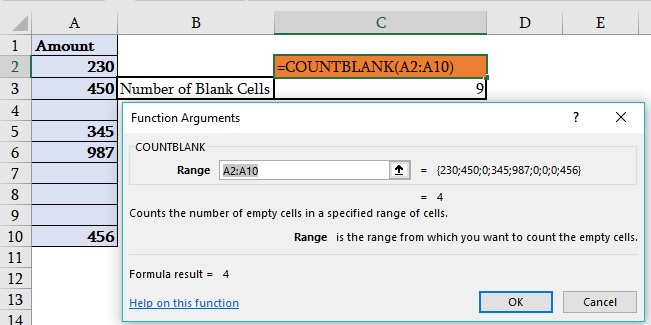
How to Apply CountBlank?
Syntax-
=COUNTBLANK(RANGE)
Arguments-
Range- Range is a set of cells from where you want to count the Blank Cells.
4. COUNTIF– It Can count those cells which match a specific condition in our selection of cells.
Syntax –
=COUNTIF(range,Criteria)
Range- Range is a set of cells which needs to be counted based on criteria.
Criteria- Criteria is the condition in the form of number, expression, or text that defines which cells will get counted.
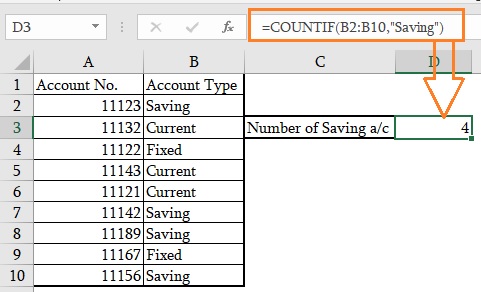
The Formula =COUNTIF (B2: B10,” Saving”) counts how many times “Saving” is on the list. This will help us know how many saving accounts are present in this branch.
Note: A criterion is not case sensitive.
5. COUNTIFS- It can count cells based on multiple conditions/criteria.
Syntax –
=COUNTIFS(criteria_range1, crietria1, [criteria_range2, criteria2], ……)
Criteria_range1- defines the first range to which the first condition (criteria1) shall be applied.
Criteria1- sets the condition in the form of a number, cell reference, text string, expression or another Excel function, required. The criteria define which cells shall be counted.
([Criteria_range2],[Criteria2],[Criteria_range3],[Criteria3]…….) theses are additional ranges and their criteria’s are optional. You can specify 127 criteria at one time in COUNTIFS Function.
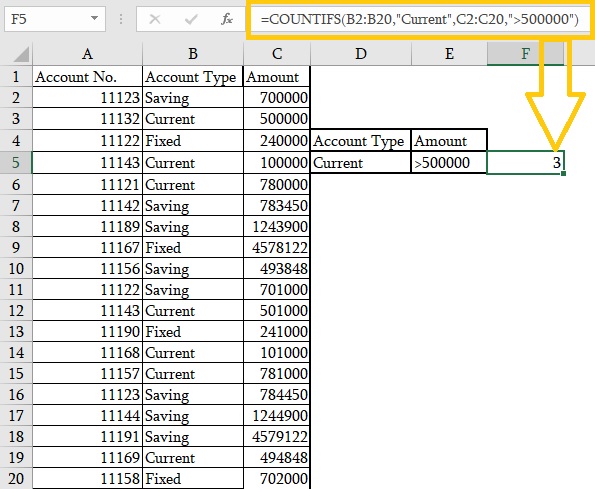
In this screenshot, we want to count a Total number of “Current accounts” opened with amount more than >500000. we have two criteria’s :
| =COUNTIFS(B2:B20,”Current”,C2:C20,”>500000″) |
In fact, no need to remember the syntax of any function in Excel as the moment one opens up any function, Excel will display the function’s complete syntax, as soon as you start typing; the argument you are entering now is highlighted in bold.
Refer the screenshot below:

Happy Learning 😊
222 total views, 3 views today
Tag:corporate training companies, corporate training companies in Delhi, corporate training courses, corporate training in delhi, corporate training programs, count function, count function in Excel, count function in Microsoft Excel, count function in MS Excel, count if, count if in Excel, Count IF in MS Office, counta, countblank, countifs, excel course online, excel courses online, excel online course, excel online training, excel training in delhi, excel training online, How to use count function in Excel, How to use count function in Microsoft Excel, How to use count function in MS Excel, learn microsoft excel, learn ms excel online, learning excel online, learning microsoft excel, microsoft excel course, microsoft excel online training, microsoft excel training, ms excel learning, MS excel online training, ms excel training in delhi, online corporate training, online excel course, online excel training, online excel training courses


You may also like
Heat Map Chart through Radio Button in Excel
27 December, 2018
How to Create a Histogram Chart in Excel
22 November, 2018
Import Data in Excel using Power Query
2 November, 2018