Have any question?
(+91) 9899366218
info@nurturetechacademy.in
Register Login
No apps configured. Please contact your administrator.

Login with your site account

Lost your password?

Not a member yet? Register now

Nurture Tech Academy Nurture Tech Academy
  • Excel Course
  • Corporate Training
  • Portfolio
  • Blog
  • Excel Assessment
  • Contact
    • Cart

      0
  • Excel Course
  • Corporate Training
  • Portfolio
  • Blog
  • Excel Assessment
  • Contact

Blog Excel

  • Home
  • Excel
  • Pasting Data on Filtered Rows

Pasting Data on Filtered Rows

  • Posted by Lokesh Lalwani
  • Categories Excel
  • Date June 13, 2017
  • Comments 0 comment

When we paste data on filtered rows it always past it on both visible and hidden rows. And if you are doing this for a huge set of data then I am sure you must be pasting it manually and wasting lot of time and efforts. Don’t worry guys, we have a solution for this but only through VBA.

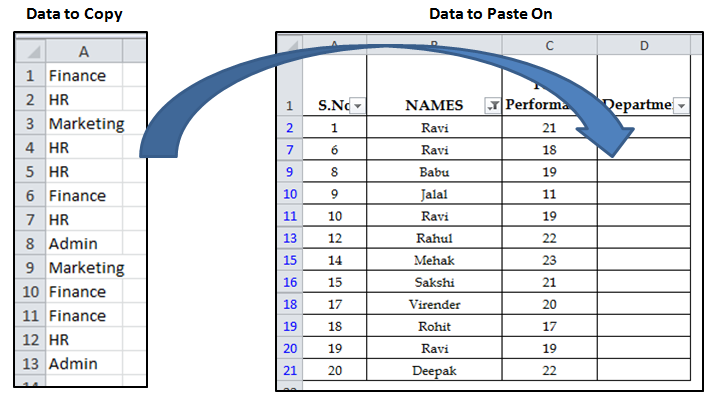
So let’s see an example, below is a screenshot of a filtered data:
 

1


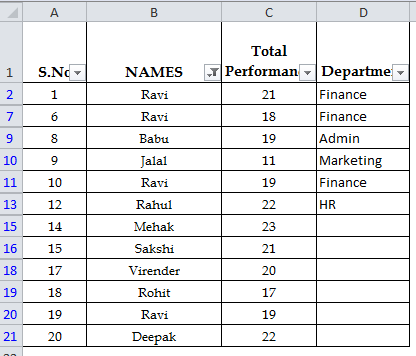
When you simply use Copy and paste it looks like this:
 

2


So it will get pasted on hidden rows also, to avoid the same, please follow the below steps :

  1. Press Alt + F11 keys simultaneously, and a Microsoft Visual Basic for Applications (VBA) window will open.
  2. Click Insert > Module, then paste below VBA code to the Module window.

Sub PasteOnVisibleCells()

    Dim rg1 As Range

    Dim rg2 As Range

    Dim CopyRg As Range

    Dim PasteRg As Range

    Set CopyRg = Application.Selection

    Set CopyRg = Application.InputBox(“Copy Range :”, , CopyRg.Address, Type:=8)

    Set PasteRg = Application.InputBox(“Paste Range:”, , Type:=8)

    For Each rg1 In CopyRg

        rg1.Copy

        For Each rg2 In PasteRg

            If rg2.EntireRow.RowHeight > 0 Then

                rg2.PasteSpecial

                Set PasteRg = rg2.Offset(1).Resize(PasteRg.Rows.Count)

                Exit For

            End If

        Next

    Next

    Application.CutCopyMode = False

End Sub

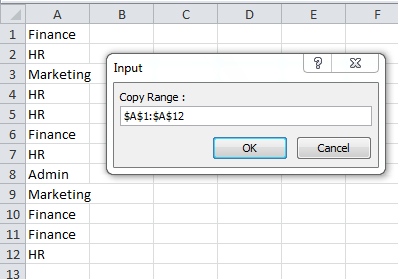
  1. Click F5 key or the Run button, a dialog box will appear for you to select Range to copy
 

3


4. After selecting the range, click OK, and then another dialog box will appear for you to select a range to paste the copied data in.
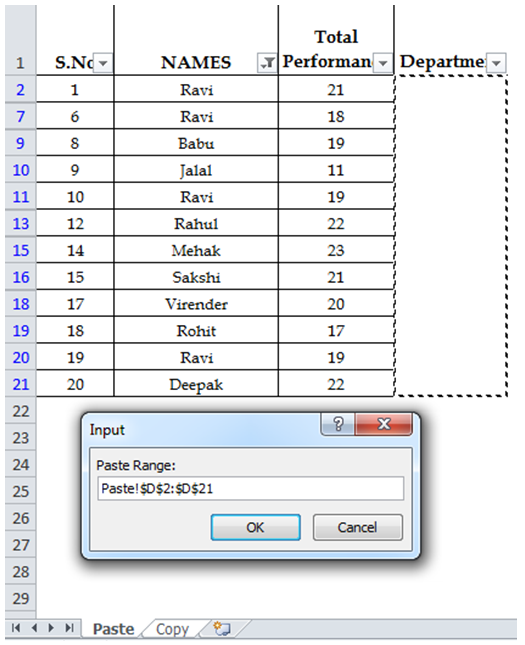
 

4


5. Click OK to get your desired result.


Download the same file here.

588 total views, 3 views today

Tag:Advanced Excel, Excel, Filter, Filtered Data, VBA

  • Tweet
  • Pinterest
Lokesh Lalwani
    Hey there, I am Lokesh Lalwani. I just love Excel and that is why i am here. We founded Nurture Tech Academy with only one goal in mind to make you SUPERHERO in Excel, Yes and that's true. Here at Nurture Tech Academy we work all day and make some impressive Excel Videos, Blog Posts and other stuff just to take you one step closer to become a Smart Excel user.

    Previous post

    How to apply Vlookup on duplicate values
    June 13, 2017

    Next post

    Sort Data Row-Wise in Excel
    27 June, 2017

    You may also like

    • Heat Map Chart through Radio Button in Excel
      27 December, 2018

    • How to Create a Histogram Chart in Excel
      22 November, 2018

    • Count Functions in MS Excel
      12 November, 2018

    Leave A Reply Cancel reply

    Your email address will not be published. Required fields are marked *

    Join our Newsletter

    Latest Courses

    Excel – Beginner to Advanced (In-depth)

    Excel – Beginner to Advanced (In-depth)

    ₹5,990.00

    logo-eduma-the-best-lms-wordpress-theme

    (+91) 9899 366 218

    info@nurturetechacademy.in

    Other

    • Blog
    • Corporate Training
    • Portfolio
    • Contact

    Learn MS Excel

    Microsoft Excel Learning
    Learn MS Excel Online

    Corporate Training

    Online Corporate Training Programs
    Corporate Training Companies in Delhi

    Online Training

    MS Excel Training Courses
    MS Excel Online Training
    MS Excel Course Online Training
    MS Excel Online Training in Delhi
    Join our Newsletter
    Why Wait? Start with our awesome Excel updates for free....