Have any question?
(+91) 9899366218
info@nurturetechacademy.in
Register Login
No apps configured. Please contact your administrator.

Login with your site account

Lost your password?

Not a member yet? Register now

Nurture Tech Academy Nurture Tech Academy
  • Excel Course
  • Corporate Training
  • Portfolio
  • Blog
  • Excel Assessment
  • Contact
    • Cart

      0
  • Excel Course
  • Corporate Training
  • Portfolio
  • Blog
  • Excel Assessment
  • Contact

Blog Excel

  • Home
  • Excel
  • Sort Data Row-Wise in Excel

Sort Data Row-Wise in Excel

  • Posted by Lokesh Lalwani
  • Categories Excel
  • Date June 27, 2017
  • Comments 0 comment

We have been using Sort function for so long in our work but still one of the most unexplored feature of this function is that we can sort data row wise also. This could be useful in some cases, where our data is in horizontal manner. So let’s see how we can do it…..

I have created a dummy data for this:

 

1


First we need to select the data


2


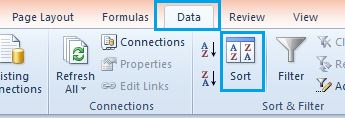
And then go to Data -> Sort


3


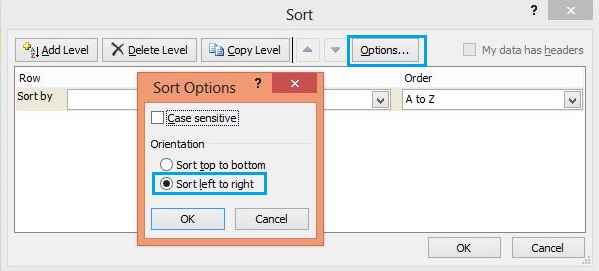
Then a Sort dialog box will appear. In this box first click on Options.. and choose Sort left to right instead of top to bottom and then press OK.
 

4


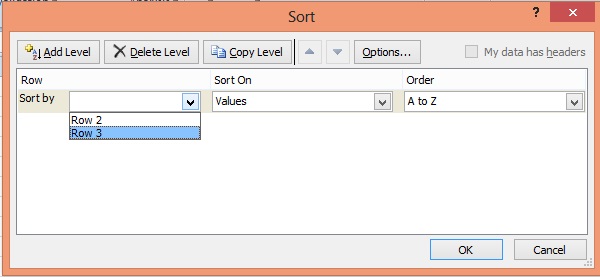
Now from the dropdown in the box choose your desired row and choose order and then press OK.
 

5


6


And we are done…. 🙂


If you like the this post then don’t forget to subscribe this blog and post your comments.

Loading

Tag:Excel, Sort, Tips, Tricks

  • Tweet
  • Pinterest
Lokesh Lalwani
    Hey there, I am Lokesh Lalwani. I just love Excel and that is why i am here. We founded Nurture Tech Academy with only one goal in mind to make you SUPERHERO in Excel, Yes and that's true. Here at Nurture Tech Academy we work all day and make some impressive Excel Videos, Blog Posts and other stuff just to take you one step closer to become a Smart Excel user.

    Previous post

    Pasting Data on Filtered Rows
    June 27, 2017

    Next post

    Advance Excel Training- Merge Multiple Worksheets Data With Excel Power Query (with Video)
    11 April, 2018

    You may also like

    • Heat Map Chart through Radio Button in Excel
      27 December, 2018
    • How to Create a Histogram Chart in Excel
      22 November, 2018
    • Count Functions in MS Excel
      12 November, 2018

    Leave A Reply Cancel reply

    Your email address will not be published. Required fields are marked *

    Join our Newsletter

    Latest Courses

    Excel – Beginner to Advanced (In-depth)

    Excel – Beginner to Advanced (In-depth)

    ₹5,990.00

    logo-eduma-the-best-lms-wordpress-theme

    (+91) 9899 366 218

    info@nurturetechacademy.in

    Other

    • Blog
    • Corporate Training
    • Portfolio
    • Contact

    Learn MS Excel

    Microsoft Excel Learning
    Learn MS Excel Online

    Corporate Training

    Online Corporate Training Programs
    Corporate Training Companies in Delhi

    Online Training

    MS Excel Training Courses
    MS Excel Online Training
    MS Excel Course Online Training
    MS Excel Online Training in Delhi
    Join our Newsletter
    Why Wait? Start with our awesome Excel updates for free....